Capture
Capture is meant for two main purposes: saving something you’ve seen in StarWatch for later, and sharing it with your team so they can go to the exact place (helpful for things like tracking bugs).
To use Capture:
- Click Capture page (available on map pages and user pages) to open the screenshot/capture modal.

- Click and drag the box to the desired size.
The capture grabs whatever’s currently visible, including UI elements.
The screenshot preview appears in the top left. Here you can verify the image, rename it, and add a description. You can also link immediately to the image from here or view it in the Library. Click the Delete icon to remove. Any action you take is autosaved.
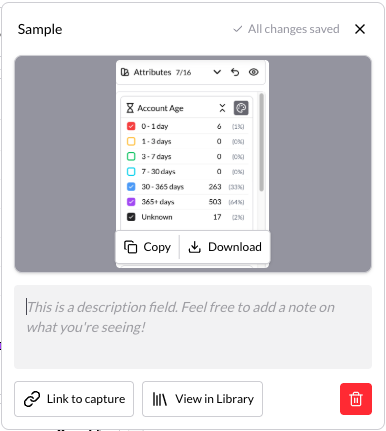
View content in the My Capture Library, accessible via the main menu. Each saved capture shows metadata. Deleting an item asks for confirmation first, since it removes the image, description, and metadata permanently.
You can also Revisit content for 3 months after capturing it, meaning you can go to the exact place the screenshot was taken.