Alerts
Alerts automatically detect and highlight unusual changes in your game’s activity. This allows you to identify potential issues or unexpected surges in player engagement without constantly monitoring live dashboards. An alert acts as an initial signal for further investigation but does not necessarily mean something is malfunctioning. For instance, a sudden spike in purchase events could indicate a highly successful promotional campaign, a recent gameplay balance update, or an underlying tracking issue.
Alerts are distinct from the Anomalies feature. While alerts monitor game-wide trends over time, anomalies flags irregular behavior within individual player sessions.
Metrics & alert types
Alerts monitors three primary operational metrics for both unexpected increases and decreases:
- Concurrent users (CCU): Detects unexpected fluctuations in the total number of players online simultaneously.
- Events: Tracks significant changes in per-player event rates (e.g., purchases, deaths, errors, etc.). Normalizing events relative to player volume helps distinguish genuine behavioral shifts from overall player count changes.
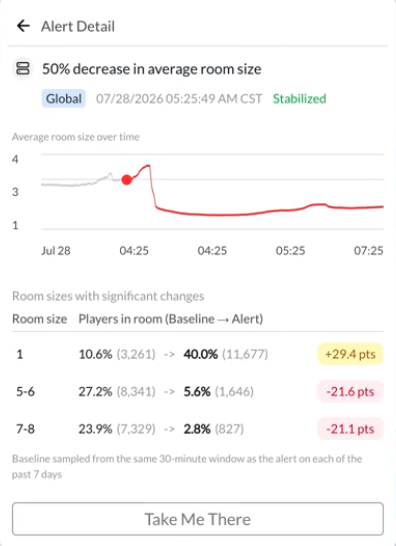
- Room size: Monitors shifts in the average number of players inside a room or game-server instance (applicable to games with multi-room architecture). Useful for detecing issues with matchmaking.
Detection
The system utilizes a statistical time-series model that analyzes historical telemetry to construct a baseline range of expected activity, accounting for daily and weekly cyclical patterns. Alerts require a sustained deviation over an evaluation window to trigger, preventing false alarms from momentary spikes or temporary dips.
Use the alert feed
To access your alerts click the bell icon in the management console to open Game Alerts. The feed displays the most recent alerts first and provides filtering options by alert type.
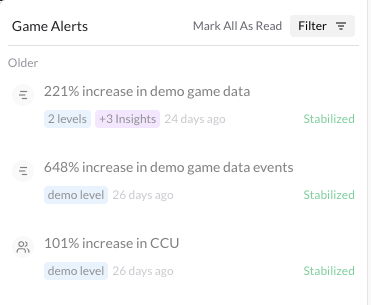
Each feed entry details the description, timestamp, status, and key distribution metrics. Clicking an alert opens its detailed view and updates its status to read. Mark All As Read clears unread indicators but does not change the resolution status of an alert.
Alert types
- Active: The alert condition is currently active, and recovery metrics have not yet been recorded.
- Stabilized: “Stable” means the metric has settled into a consistent pattern that the detection model now considers normal. It may still be higher or lower than it was before the alert—the model has simply adapted to its new behavior.
The alert feed automatically refreshes every minute while active. Visible alert data aligns with the given metric’s retention (e.g. Event Alerts remain in the event feed for the duration of event data’s retention).
Investigate alerts & insights
Click an alert to see a detailed metric chart surrounding the event window, along with contextual insights where available:
- Impacted levels: Identifies specific game levels that experienced significant shifts in activity share. Select a listed level to navigate to deeper telemetry.
- Distribution insights: Highlights notable proportion shifts across player platforms, countries, or account age groups (calculated from a player’s first recorded login).
- Room-size distribution: Shows changes in how players are distributed across server room capacity ranges.
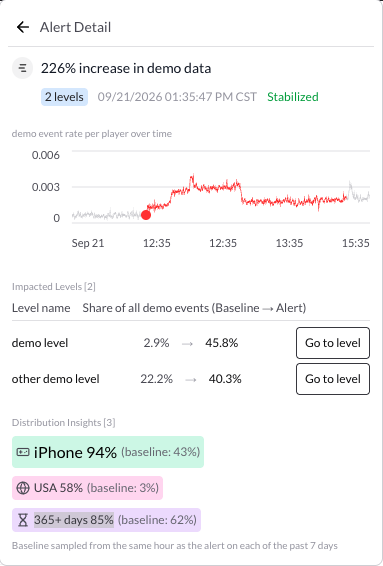
A notation like “85% (baseline: 66%)” indicates that a specific segment accounted for 85% of the alert sample compared to 66% in the historical baseline. It does not indicate that the absolute player count for that segment grew by 85%.
Baseline comparisons use matching time-of-day windows spanning up to seven previous days. Because insights require statistical significance and sufficient sample size, not all alerts will display distribution insights.