Chats
The Chat feature lets you see and filter messages sent within your game. The primary use is for player support and safety investigations. Users can search for specific keywords or phrases within the message content and then narrow down by time and date parameters.
By default, StarWatch shows the last 30 minutes of chat activity, but they are stored for 6 months.
Access chats
Access chat from the menu on the left-hand side of the screen. Click the menu icon and select Chat.
As a visual indicator, Player IDs are assigned random colors to help visually distinguish different users in the chat log. There are several areas where chat is incorporated into the StarWatch experience.
Chat permissions
Chat visibility can be toggled by admins or owners of teams in the Tenant Manager by changing the Chat Content box next to the role selector.
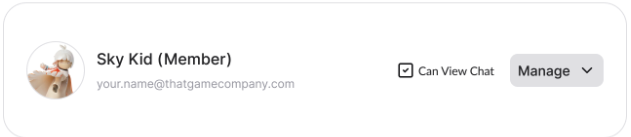
Users who do not have access to chat content via this page will not see any chat-related content anywhere in StarWatch, including all of the features described below.
Floating chat
In the 3D map, select the messages icon in the Overlay panel.

This toggles on live chat content over the 3D map, positioned above the player who sent each message.
Conversation mode
With floating chat enabled, click any of the chat message bubbles. This enters conversation mode, which is StarWatch’s best estimation for finding all the messages which may have been in conversation with this player. This is curated by level, game server, and position.
- Auto Scroll: Show the latest messages as they come in.
- Color by ID: Using a hash of the player ID, color the user’s icon to assist in identifying who sent what.
- Go to Chat ->: Navigate to the chat page, filtering by the users included in the conversation.
Chat search
From the timeline scrubber, select the messages icon . Then select Chat Search (Beta).
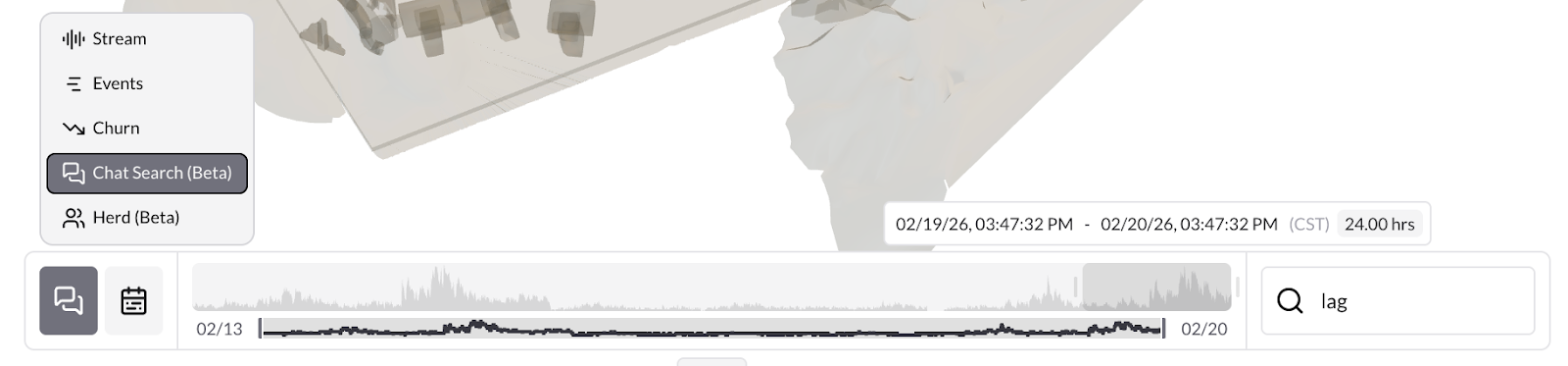
This creates a search bar where you input text to search for on the current level. Any messages from the selected portion of the timeline appear on the 3D map wherever they were sent.
Chat filters
Chats can be filtered by message text, user IDs, and level IDs. User and level IDs can be searched inclusively or exclusively.
The left icon filters the view to messages sent by this user as well as by Room, the second excludes the user, and the third copies the user’s ID. The button next to the level name filters to that level, showing all users chatting in that space in addition to any users specifically queried for.
Active filters appear in the left-hand menu.
Remove filters by pressing the circle with a - in it.
To search for a specific user, you can assign one user as the ‘focused user’ by pressing the target icon next to the user ID. This highlights messages by that user.
Click the icon again to de-select.
Export chat logs
Select the Download icon to the right of the time scrubber. This generates a CSV using the time range and any filters you’ve set and downloads it to your computer.
Safety and flagging
Chat messages that have been automatically flagged by the system as potentially violating safety guidelines are highlighted in red. The flagging reason is attached to the message.
The left-hand menu displays the active filters currently applied to the search results. You can filter to include or exclude specific users using the icon next to the User ID.
Users can search based on the players’ in-game level (the physical area they were occupying in the game world). These areas correspond directly with the in-game map. The location icon next to a message allows you to immediately add everyone a user was talking to (all players within the same room) to the active filter. The Room is defined as the intended recipients of a message or chat.